
Billing and plans
Tresor offers Free, Pro, Team, and Enterprise plans. Manage your subscription, seats, and billing details in Settings → Billing.
Billing and plans
In a nutshell: Tresor has a free plan for getting started and paid plans for unlimited use and team features. Manage everything in Settings → Billing.
Plans at a glance
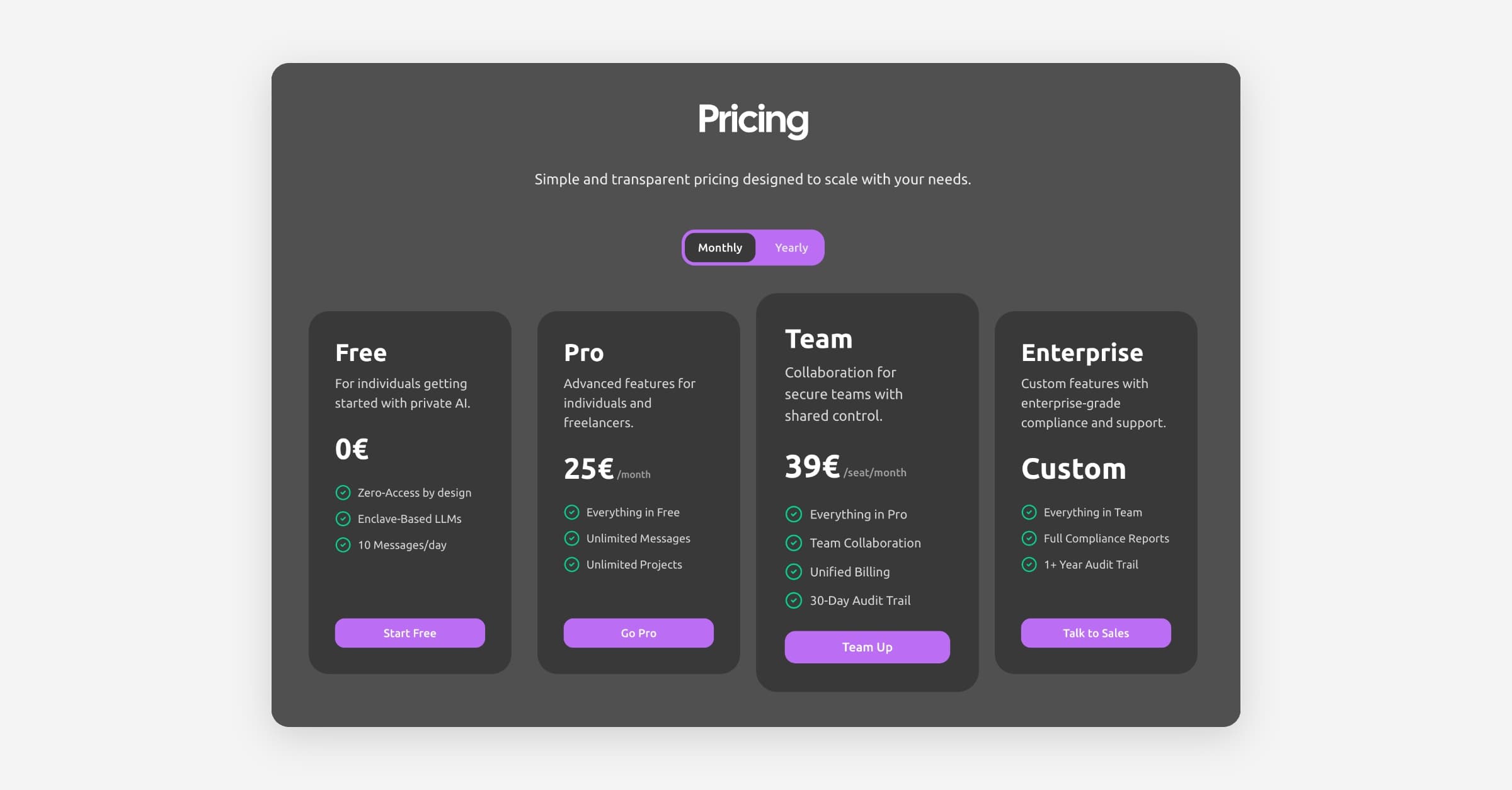
Free | Pro | Team | Enterprise | |
|---|---|---|---|---|
Price | €0 | €25/month | €39/seat/month | Custom |
Messages | 10 per day | Unlimited | Unlimited | Unlimited |
Projects | — | Unlimited | Unlimited | Unlimited |
Team collaboration | — | — | ✅ | ✅ |
Unified billing | — | — | ✅ | ✅ |
Audit trail | — | — | 30 days | 1+ year |
Compliance reports | — | — | — | ✅ |
Zero-access encryption | ✅ | ✅ | ✅ | ✅ |
Enclave-based AI | ✅ | ✅ | ✅ | ✅ |
💡 Tip: All plans include the same core privacy features — zero-access encryption and enclave-based processing. Paid plans add more capacity and collaboration tools.
Yearly billing is also available and saves approximately 17%.
Free plan
The Free plan includes:
10 messages per day — resets daily.
Access to all AI models.
Full zero-access privacy.
Encrypted conversation history.
It's a great way to try Tresor and see if it fits your workflow. No credit card required.
What happens when I hit the daily limit?
You'll see a message telling you when your messages reset (typically midnight in your timezone). You can upgrade to Pro at any time for unlimited messages.
Upgrading your plan
Go to Settings → Billing (or click Upgrade plan in the sidebar menu).
Select the plan you want.
Follow the Stripe checkout flow to enter your payment details.
Your plan activates immediately.
You can also upgrade when prompted — for example, when you hit the daily message limit or try to create a project on the Free plan.
Managing your subscription
In Settings → Billing, you can:
View your current plan and billing period.
Update seats (Team and Enterprise plans) — add or reduce team seats.
View invoices — opens your Stripe invoice history.
Manage billing — update your payment method via Stripe.
Cancel subscription — downgrades your plan at the end of the current billing period.
Seats (Team plan)
Each workspace member requires one seat. You can adjust the number of seats in the billing settings:
Adding seats is billed immediately (prorated).
Reducing seats takes effect at your next billing renewal.
Enterprise plan
The Enterprise plan is designed for organizations that need:
Everything in the Team plan
Full compliance reports
1+ year audit trail
Custom terms and support
Custom pricing based on your needs
Contact sales to discuss Enterprise pricing.
Payment methods
Tresor uses Stripe for payment processing. Supported payment methods include:
Credit and debit cards
SEPA direct debit (for EU customers)
Tresor does not store your payment details directly — they're securely handled by Stripe.
Cancellation
You can cancel your subscription anytime from Settings → Billing:
Click Cancel subscription.
Follow the Stripe cancellation flow.
Your plan remains active until the end of the current billing period.
After that, your account downgrades to the Free plan.
Your encrypted conversations and projects are preserved — you can still access them, but new messaging is limited to the Free plan allowance.
Good to know
Plan changes are instant. Upgrades activate right away. Downgrades take effect at the end of the billing period.
Your data is always yours. Changing plans doesn't affect your conversations or files.
If a payment fails, Tresor shows a billing warning. Update your payment method to avoid service interruptions.
Workspace billing is managed by the workspace owner or admin.
Related articles
Workspaces and team collaboration — Set up team collaboration.
Managing your account — Profile and preferences.
Frequently asked questions — Quick answers to common questions.