
Verifying your conversation's privacy
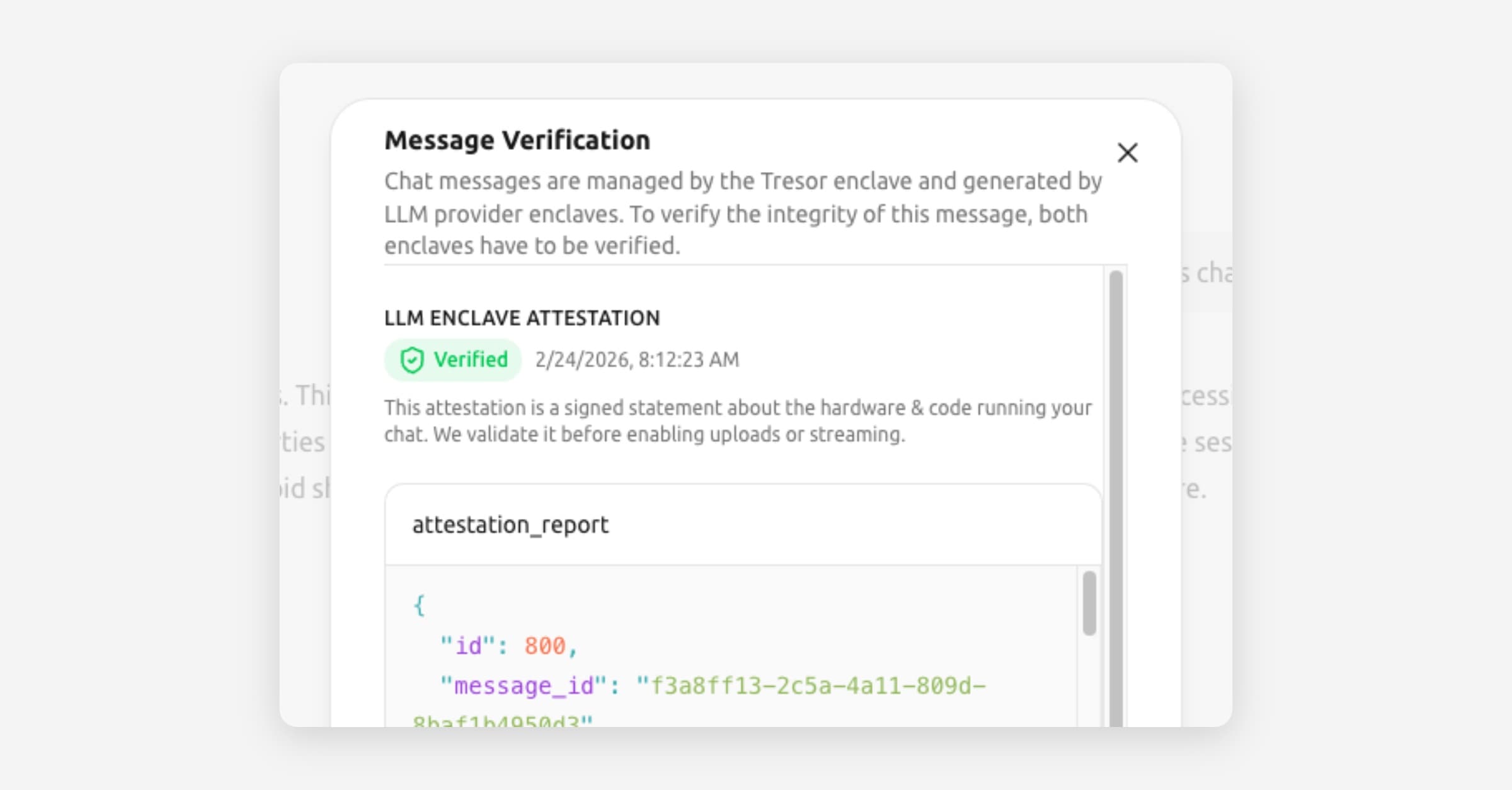
Every message in Tresor comes with a cryptographic proof that it was processed privately. Check the green shield under any message to see the verification details.
Verifying your conversation's privacy
In a nutshell: Look for the green privacy badge in the prompt box (pre-chat) and the green shield under each AI response (post-chat). These are cryptographic proofs — not just claims — that your conversation was handled privately.
Two places to check
Tresor provides verification at two points:
1. Before you send a message — the privacy badge
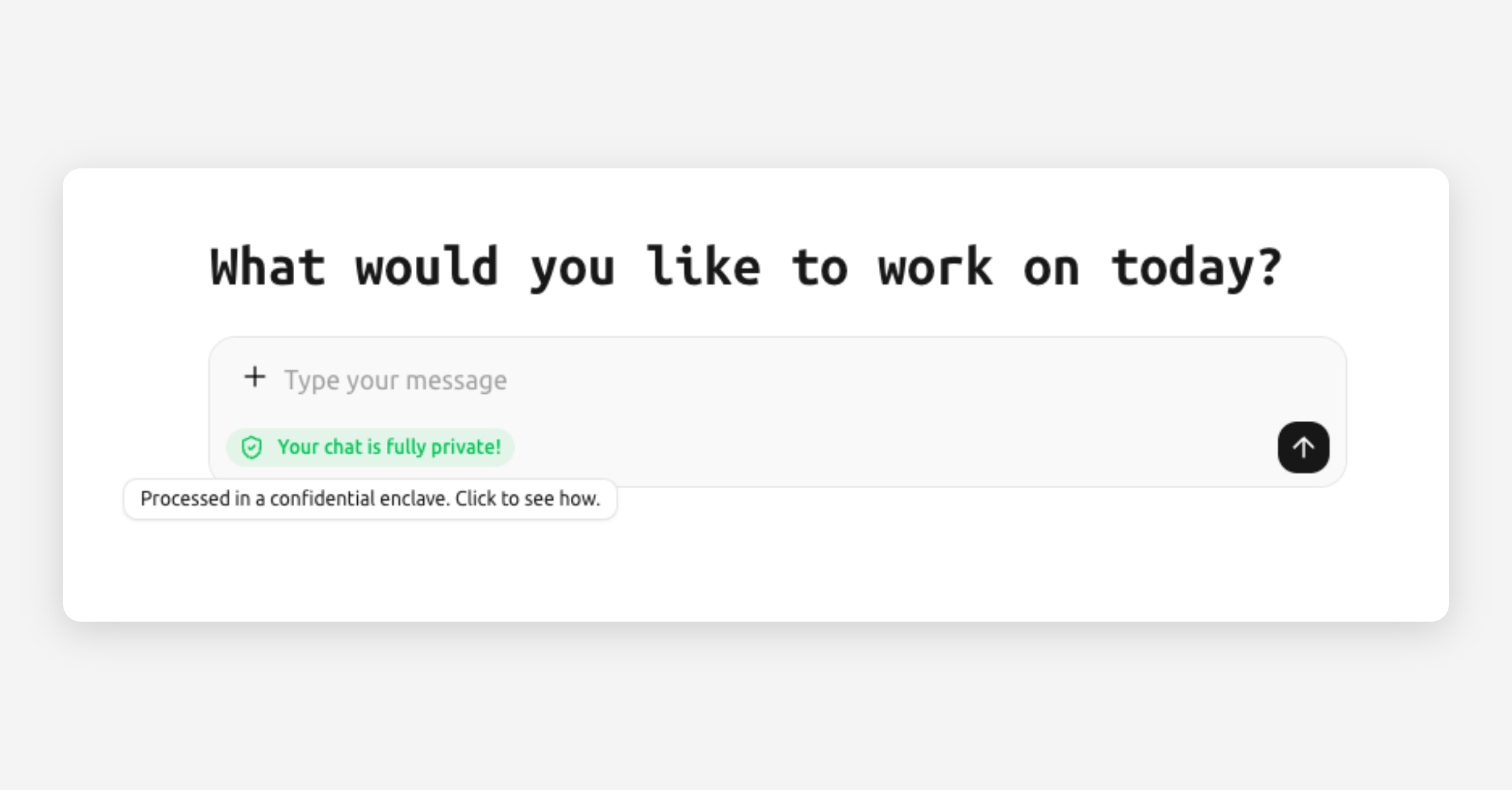
In the prompt box area, you'll see a small privacy badge. This tells you the status of the enclave before you even type:
Badge color | Meaning |
|---|---|
🟢 Green — "Your chat is fully private!" | The enclave has been verified. Everything is working as expected. |
🟡 Amber — "Privacy degraded" | Something needs attention. Click for details. |
⚪ Gray — "Privacy unknown" | Attestation hasn't been confirmed yet. This is normal right after loading. |
Click the badge to open the privacy details modal, which shows the full attestation report.
2. After each AI response — the message shield
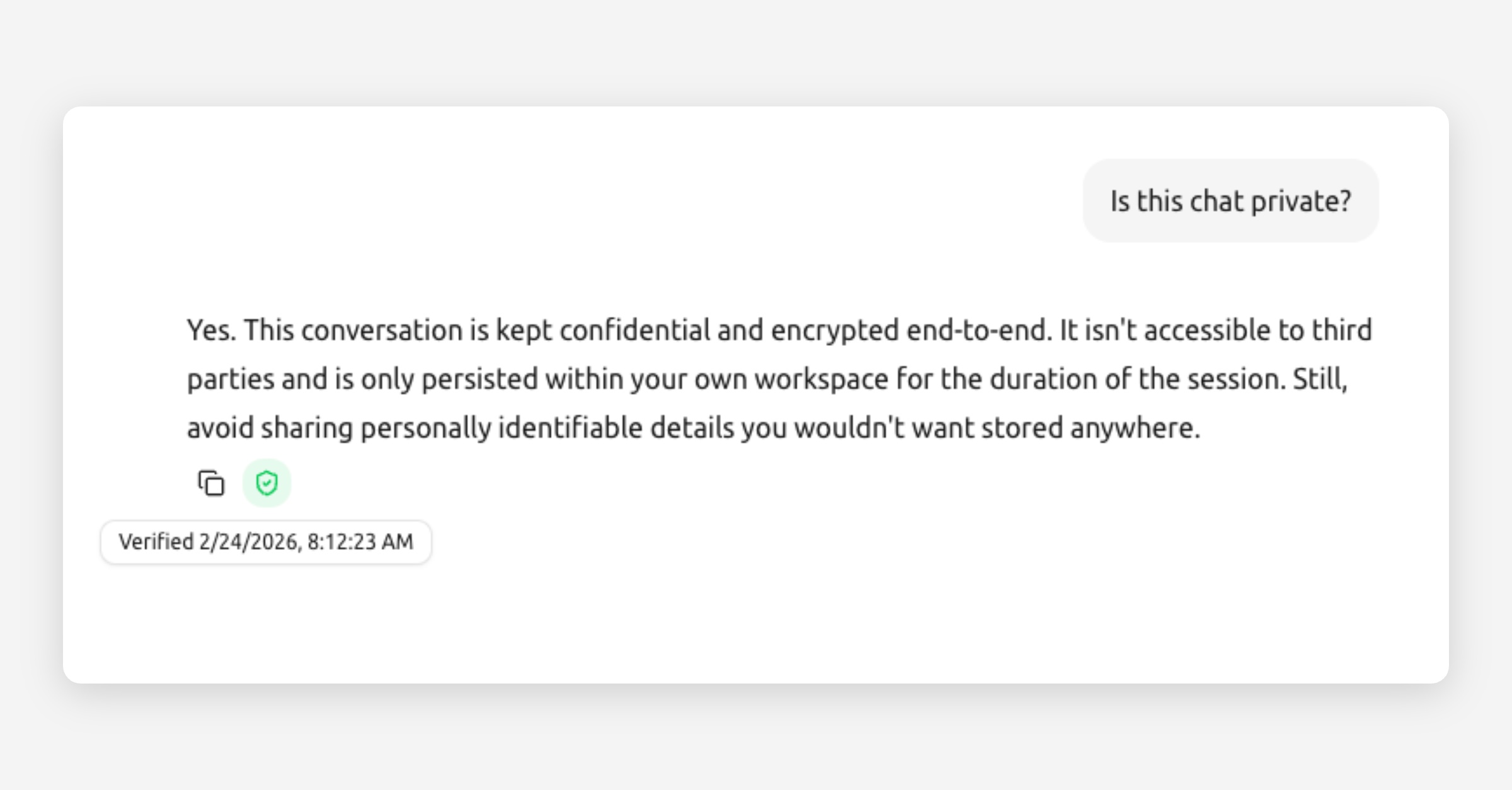
Under every AI response, you'll see a small shield icon:
Shield | Meaning |
|---|---|
🟢 Green shield — "Verified" | This specific message has been verified. A signed receipt confirms it was processed inside a genuine, unmodified enclave. |
🔴 Red shield — "Verification failed" | Something didn't check out. Click for details. |
🟡 Amber shield — "Check details" | Partial verification or an unexpected condition. Click to learn more. |
⚪ Pulsing gray shield | Verification is in progress. Wait a moment. |
Click any shield to see the full verification details for that message.
What the verification proves
When you see a green shield, it means:
The enclave is genuine. The hardware running the AI was verified as a real, unmodified secure enclave.
The code is authentic. The software running inside the enclave matches the expected, verified version.
Your message was processed privately. Cryptographic digests (fingerprints) of your message and the AI's response are included in the receipt.
Nobody tampered with the response. The receipt is cryptographically signed — if anyone modified the response, the signature would break.
The privacy details modal
When you click the badge or a shield, a modal opens showing:
Status: Verified, failed, or pending.
Provider: Which inference provider processed the message (e.g., Tinfoil, RedPill).
Enclave attestation: Hardware verification details.
Message digests: Cryptographic fingerprints of the request and response.
Verification timestamp: When the verification was performed.
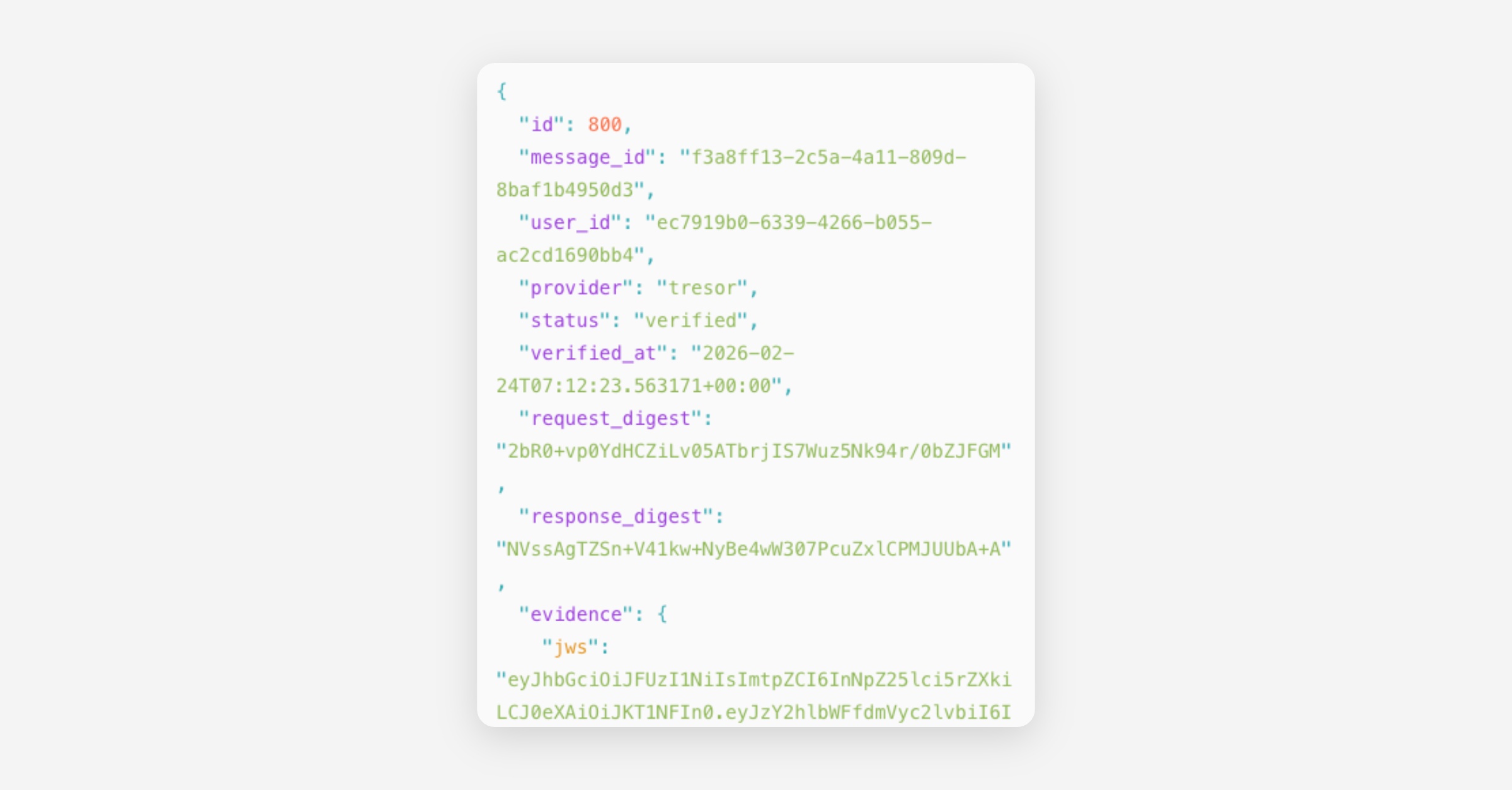
Most of this information is technical and primarily useful for compliance officers or IT teams. The key thing to check is: is the status green and "Verified"? If yes, your privacy is intact.
Who benefits most from verification?
This feature is valuable for:
Regulated industries (legal, finance, healthcare) — where you need to demonstrate that confidential data was handled securely.
Compliance officers — who need evidence for audits or data protection impact assessments.
IT and security teams — who evaluate tools before approving them for company-wide use.
Curious users — who simply want to understand and trust the system they're using.
You don't need to check verification for every message. Once you've seen that it works, you can trust that Tresor automatically verifies everything in the background. The green indicators are always visible as a passive reassurance.
Good to know
Verification happens automatically after every AI response. You don't need to trigger it.
Verification receipts are stored permanently so you can review them later.
Over time, the detailed evidence is pruned for efficiency, but cryptographic hashes are retained to maintain the audit trail.
If verification ever fails, Tresor shows a clear warning. This is rare and usually caused by temporary infrastructure issues.
🔍 Technical detail
Each verification receipt is a JWS (JSON Web Signature, ES256) that contains:
Schema version and enclave measurement: Identifies the exact enclave image.
Request digest and response digest: SHA-256 hashes of your message and the AI's response, proving content integrity.
Provider attestation: An independent attestation from the inference provider (Tinfoil or RedPill/Phala) that includes hardware measurements, code measurements, and TLS certificate fingerprints.
Policy hash: References the security policy under which the enclave operates.
Timestamps: When the verification was issued and when it expires.
The signing key's public counterpart is published via a JWKS (JSON Web Key Set) endpoint, allowing independent verification of receipts.
Evidence is stored in a message_verifications table with an immutable audit trail. Full evidence is retained for a configurable window (default: 30 days), after which the raw JSON is pruned but evidence_sha256 hashes are kept permanently.
Related articles
How Tresor protects your privacy — The full privacy architecture.
What is a secure enclave? — Understanding the sealed computing environment.
Glossary — Definitions of attestation, receipt, digest, and more.