
Conversations
Start new conversations, organize them in the sidebar, search your history, rename or delete chats — all titles and content are encrypted.
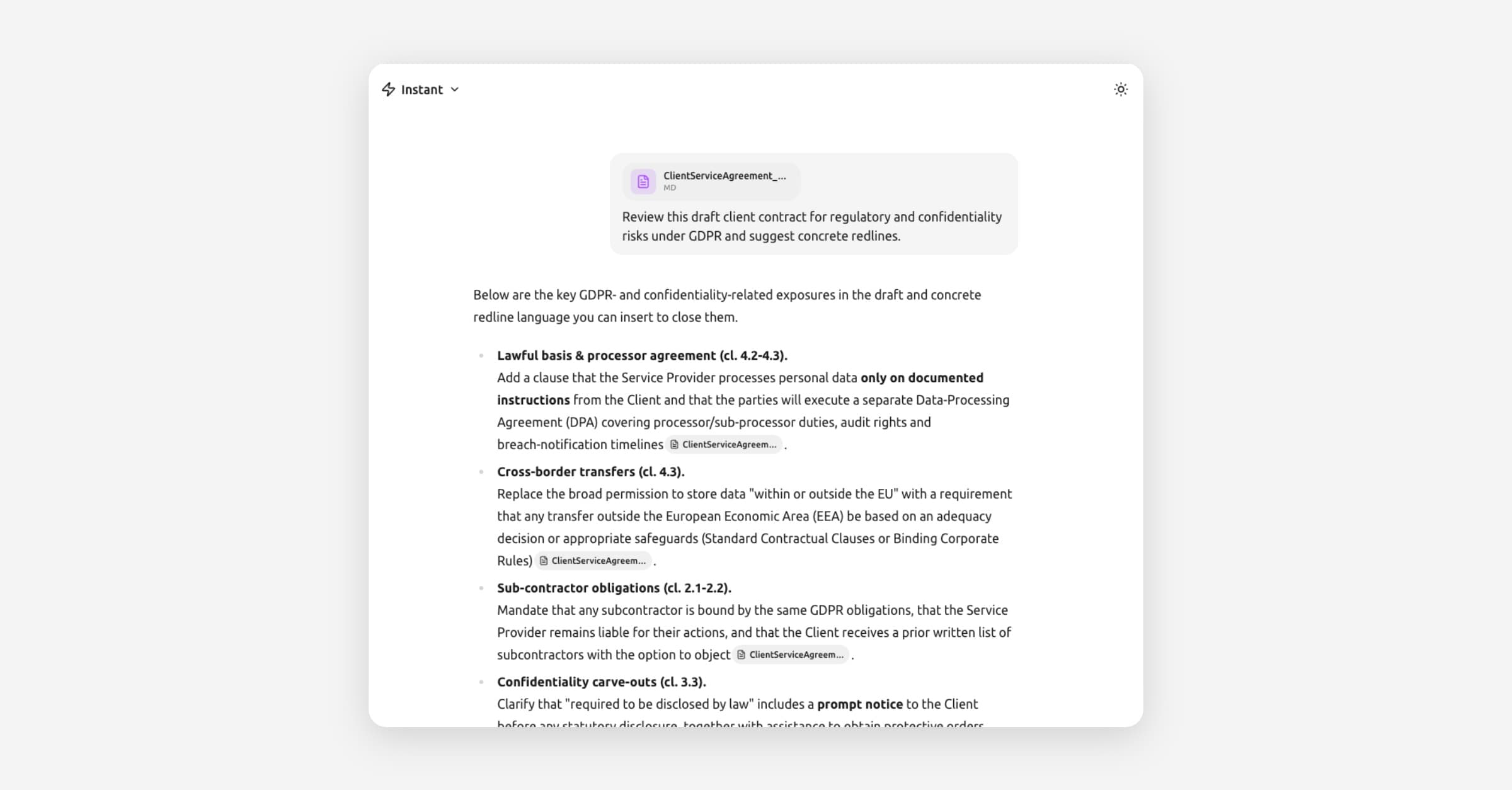
Conversations
In a nutshell: Start a new conversation from the sidebar or with a keyboard shortcut. Your chats are listed by date, searchable, and organized into projects if you want. Everything is encrypted.
Starting a new conversation
You have several options:
From the sidebar
Open the sidebar on the left (click the menu icon if it's collapsed).
Click New chat at the top.
A fresh conversation opens with an empty prompt box.
[Screenshot: The sidebar with the "New chat" button highlighted at the top]
From the keyboard
Press Shift + ⌘ + K (Mac) or Shift + Ctrl + K (Windows/Linux) from anywhere in Tresor.
From the home screen
Click the Tresor logo in the top-left corner of the sidebar to return to the home screen with a fresh prompt box.
Inside a project
Open a project in the sidebar and type in its prompt box. The new conversation is automatically created inside that project. See Projects.
Each new conversation starts with a clean context — the AI doesn't carry over information from other chats.
Finding and browsing conversations
All your conversations appear in the sidebar on the left, grouped by when you last used them — today, yesterday, last week, and so on.
[Screenshot: The sidebar showing conversations grouped by date (Today, Yesterday, Last 7 days)]
Searching chats
Click the Search icon at the top of the sidebar.
Type a word or phrase from the conversation you're looking for.
Matching conversations appear as you type.
🔒 Privacy: Your chat titles and content are encrypted. Search works by decrypting titles locally in your browser — nothing is sent to the server in plaintext.
Renaming a conversation
Tresor automatically generates a title based on your first message. To rename:
Find the conversation in the sidebar.
Right-click it (or click the ⋯ menu on hover).
Select Rename.
Type the new name and press Enter.
Moving a conversation to a project
Right-click the conversation (or click ⋯).
Select Add to project.
Choose the project from the list.
To remove it from a project later, right-click and select Remove from project.
Deleting a conversation
Right-click the conversation (or click ⋯).
Select Delete.
Confirm the deletion.
⚠️ Note: Deleted conversations cannot be recovered. Since they're encrypted with keys only you hold, Tresor has no backup copy.
Good to know
Conversations auto-save as you chat. You don't need to do anything.
The sidebar shows your recent chats. Use search to find older ones.
If you're in a team workspace, teammates cannot see your conversations unless they're in a shared project.
Chat titles are encrypted just like messages — Tresor's database stores only ciphertext.
On the Free plan, you have 20 messages per day. Upgrade to Pro or Team for unlimited messages.
Related articles
Projects — Organize conversations and files together.
AI models and Thinking mode — Pick the right model for your task.
What Tresor can and cannot see — What's encrypted and what isn't.